The most popular advice about scheduling Facebook posts starts with finding the best time to publish. That's the wrong first check. A promising hour won't help if you've selected the wrong Page, misunderstood the scheduler's time zone, or chosen a date the tool won't accept.
Learning how to schedule a Facebook post is mostly about controlling those mistakes before you click Schedule. Choose a sensible publication window, but put more effort into confirming what will publish, where it will appear, and which clock the scheduler is using.
Table of Contents
- What You Can Schedule and How Far Ahead
- Choose Test Windows for Your Page
- Schedule a Page Post and Run the Queue Check
- When a Scheduled Post Fails or Lands at the Wrong Hour
- Queue Past 29 Days in SleekPost
What You Can Schedule and How Far Ahead
Native Facebook scheduling is built for Pages, not ordinary personal-profile posting. Meta's scheduling guide sets the publication window at 20 minutes to 29 days ahead and describes a workflow for administrators or people with Facebook or Task access.
That makes Meta Business Suite useful for near-term batching, but not a complete home for an entire campaign calendar. You can prepare upcoming promotions without being online at publication time. For more distant content, keep the approved copy and assets somewhere you can review them before they enter the publishing queue.
Check access before writing
If you post only from a personal profile, this Page workflow doesn't apply. Create or switch to a Page you administer, then open Meta Business Suite under that Page's identity. Having a Facebook login isn't the same as having permission to publish for a business.
On desktop, the composer can prepare content for Facebook and Instagram. Treat destination selection as a publishing decision, not a convenience checkbox: the same asset may need different copy, framing, or a different call to action.
Use this Native Facebook scheduling limits checklist before leaving anything in the queue.
| Constraint | What Meta allows | What breaks if you ignore it |
|---|---|---|
| Who can schedule | Page admin or a person with Facebook or Task access | A personal profile login alone doesn't open this Page flow |
| Where it lives | Meta Business Suite, then Planner or Content → Posts & reels → Scheduled | The item is easy to lose if you stay on the wrong Page |
| How far ahead | The native advance-scheduling window described above | Times outside that window aren't accepted |
| Whose clock | The account's current time zone | Morning in one region can be overnight in another |
| What to verify | Page, media, copy, audience, and time zone | Wrong Page or audience matters more than a slightly off hour |
| How to change it | Manage post, edit date or time, save | An unchanged queue item retains its old publication time |
Establish whose morning you mean
Meta's scheduling instructions specify that scheduling uses the account's current time zone. For an agency managing a client abroad, write down the intended audience's local time alongside the time entered in the scheduler. Don't assume your laptop clock proves what the account will use.
Check daylight-saving transitions when a campaign crosses a clock change. The important question isn't whether the displayed hour looks familiar; it's whether that hour still corresponds to the client's intended local publication time.
Practical rule: Verify the destination and clock before optimizing the hour.
For video assets, check the Facebook video requirements before uploading the final file. When adapting a campaign for Instagram, the posting time advice from Sup Growth provides a separate platform-specific planning reference, rather than a reason to copy your Facebook schedule unchanged.
Choose Test Windows for Your Page
Published posting-time studies don't agree on a universal winning hour. That disagreement is useful: it tells you to treat outside benchmarks as candidates, not instructions for your Page.
The Candidate Facebook posting times below give you starting points. Keep each study's sample in mind rather than treating every row as evidence about your particular followers.
| Source | Time to try | How to use it |
|---|---|---|
| Meta Active times | Followers' busiest hours on Facebook and Instagram over the previous seven days, described in the DataReportal Facebook overview | Start with this Page's activity; don't rely on a week skewed by a holiday or launch |
| Buffer | In its 2025 analysis of more than 1 million Facebook posts, Buffer found Monday at 5:00 a.m. was best-performing | An early-week test slot, not a default for every industry |
| Hootsuite and Critical Truth | Their 2025 analysis of more than 1 million business social-media posts identified Tuesday at 5:00 a.m. as Facebook's best overall time, according to Hootsuite | Another early slot to compare with your audience-specific recommendation |
| Sprout Social | Its 2025 analysis of 30,000 business users found Facebook engagement strongest on weekday mornings, particularly 9:00 a.m. to noon, as reported by Social Media Today | A business-hours band to test against an early slot |
| Multi-region Page | Separate slots by audience region | Avoid choosing a global hour that reaches part of your audience overnight |
Build a comparison you can trust
Start with Active times in Meta Business Suite. Recent follower behavior is more relevant to a neighborhood shop than a broad cross-industry average, although an unusual launch or holiday can distort that recent activity.
Choose a small set of candidate windows you can sustain. A shop might compare a before-opening slot with a lunchtime slot, using product posts with similar creative quality and the same kind of purchase invitation.
Don't compare a major discount video with an ordinary opening-hours notice and conclude that the video's publication hour caused the difference. Hold the topic, format, offer, and call to action as steady as practical.
- Choose the outcome first. For a booking campaign, prioritize qualified clicks or bookings rather than reactions alone.
- Compare rates. Clicks divided by reach helps distinguish stronger response from just reaching more people.
- Use a consistent measurement period. Give each post the same opportunity to collect results before judging it.
- Record context. Note promotions, holidays, unusual shares, or other events that could explain a spike.
Separate audience regions
For an international Page, define the audience before selecting the time. A customer announcement aimed at European subscribers shouldn't inherit a North American slot just because that slot worked for a previous promotion.
The guide to the best time to post on social media can help organize candidate windows across networks. Once comparable posts show a dependable pattern for your Page, replace borrowed benchmarks with your own operating schedule.
Schedule a Page Post and Run the Queue Check
Say a local shop wants to publish a product photo on Tuesday. The owner has approved the image, product description, and destination link. The job is to turn that approved package into a queued post without changing its identity, audience, or intended publication time.
Use this workflow as the desktop checklist.
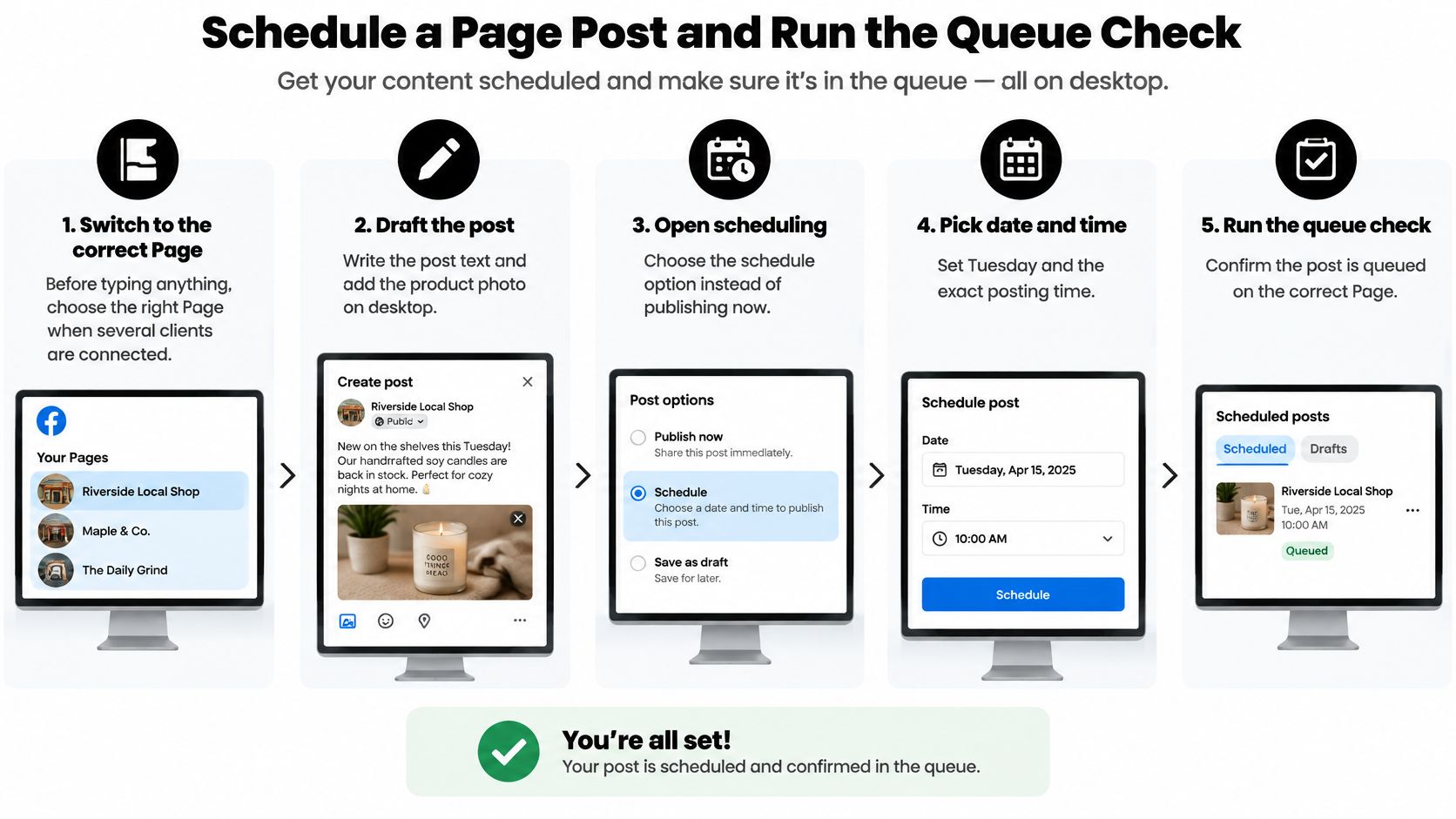
Draft under the correct identity
Switch to the correct Page. Read the Page name and inspect its profile image before typing. With several clients connected, a familiar-looking composer is not proof that you're working in the right account.
Open Meta Business Suite. Confirm that the selected business and Page match the shop. If the expected destination is missing, resolve access before building the post.
Select Create post. Check the destinations selected in the composer. Remove any network that isn't part of this publication, rather than assuming every connected account should receive the same message.
Add the approved copy and media. Upload the product photo, inspect the crop, and add useful accessibility text where available. Open the destination link separately and check that the preview represents the intended page, not an outdated offer.
A product photo can look correct as an original file but lose important details in the preview. Check the actual framing in the composer, especially when packaging text, a price label, or the product itself sits near an edge.
If the campaign includes both networks, VideoTour.ai's Facebook and Instagram posting instructions provide a companion reference for preparing the destinations. Keep approval attached to the final network-specific version, not merely the original draft.
Set the schedule deliberately
Enable Scheduling options. Choose scheduled publication rather than publishing immediately. Pause if the interface doesn't offer the expected control; don't use an immediate-publish button as a substitute.
Select the publication date and time. Read the calendar date, weekday, and account time zone together. Meta's Page-post instructions permit scheduling from 20 minutes to 29 days ahead, so confirm the selected timestamp falls inside that range.
Recheck audience and destination settings. Confirm that any available audience restrictions match the approved campaign. If you duplicated an older post, inspect inherited settings instead of assuming they were cleared.
Click Schedule. Wait for the save operation to finish. Don't close the tab while the composer is still processing the request or uploading media.
The desktop walkthrough below offers another view of the publishing flow.
Finish in the queue, not the composer
Open Planner or Content → Posts & reels → Scheduled. Find the saved item and match its Page, thumbnail, copy, and timestamp to the approved package. Open its details rather than trusting a calendar tile alone.
Retain the source material and record approval. Keep the original photo and final copy in a shared location the approver can access. Leave enough review time to replace an asset or repair a link without rushing publication.
For teams, separate copy approval from the final queue check where staffing allows. The person checking the queue should compare it with the approved version, not just confirm that something appears on the calendar.
A successful save means the post entered the queue. It doesn't prove that the queued post matches what the client approved.
Finish this check before drafting the next item. The reliable posting checklist is useful for turning that final inspection into a repeatable team habit rather than an optional last glance.
When a Scheduled Post Fails or Lands at the Wrong Hour
A missing post and a wrong-hour post need different fixes. For a missing item, start with Page identity and saved status. For an unexpected publication hour, compare the intended local time with the scheduler's displayed time zone before changing the content.
Follow the troubleshooting order below rather than repeatedly recreating the post.
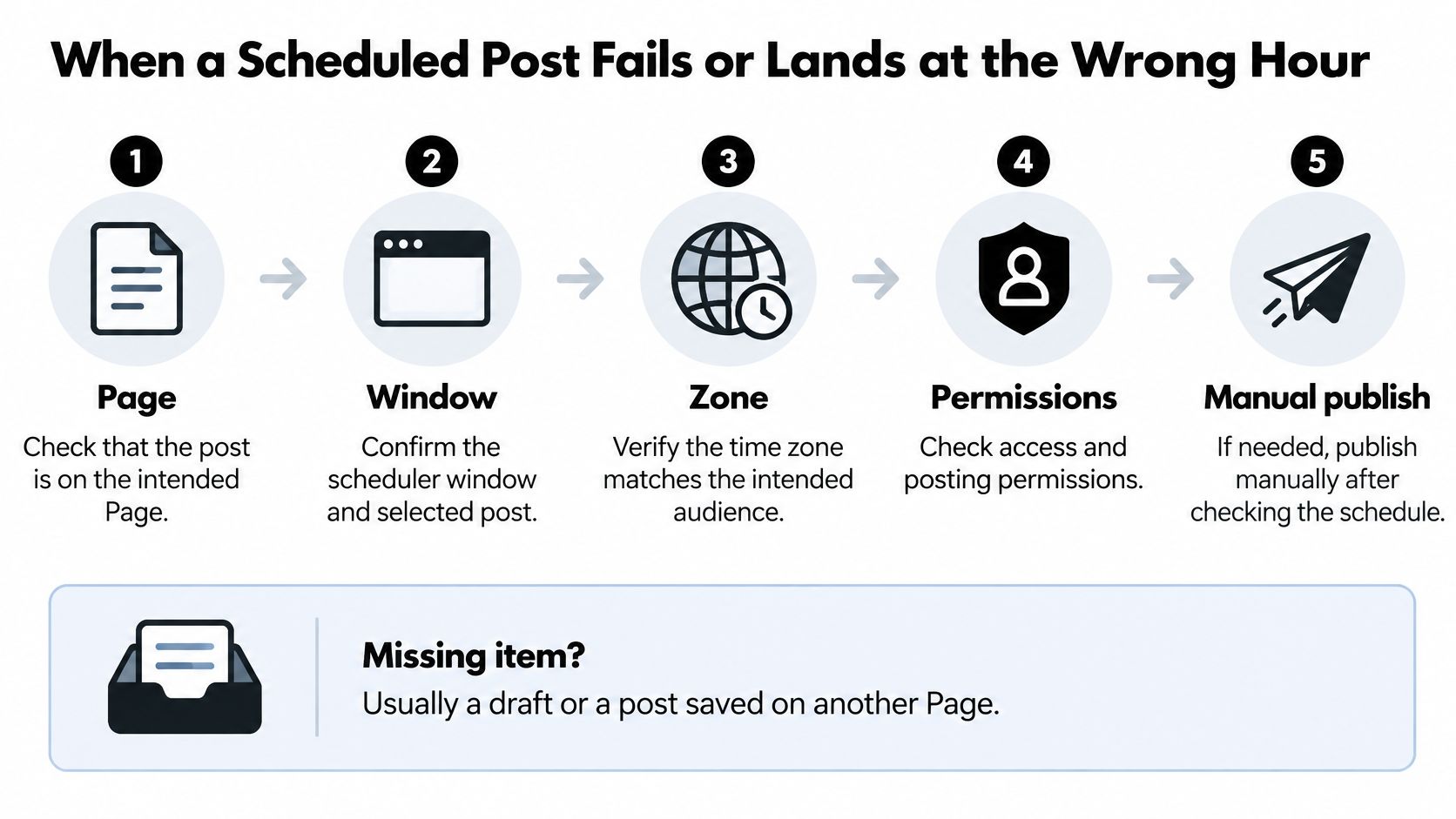
Match the symptom to the next action
The Scheduled post problems and fixes table keeps the investigation tied to a place in the product. Check the existing item before making a replacement, or you may accidentally leave duplicate posts queued.
| What you see | Usual cause | Fix |
|---|---|---|
| Not in the queue | Saved as a draft or on another Page | Open Planner and Scheduled on the intended Page |
| Time won't save | Outside the native scheduling window | Move inside the accepted window or retain it in a longer-term calendar |
| Publishes at an unexpected local hour | Account time zone or a daylight-saving shift | Confirm the zone and intended local publication time |
| Never goes live | Expired permissions or unsupported media or text | Inspect Content → Scheduled, restore the necessary access or content, then publish manually if appropriate |
| Media picker stalls on mobile | Device permission prompt | Attach and review the file on desktop |
| Need to cancel | Item is still scheduled | Edit or delete the scheduled item before publication |
If the timestamp passes without a live post, use Meta's scheduled-post troubleshooting instructions to inspect Content → Scheduled and use manual publication when appropriate. Check the Page itself before doing so; a delayed status update shouldn't cause you to publish the same announcement again.
Expired permissions require an authorized person to restore access. Unsupported media requires a corrected file or post composition. Repeatedly pressing Schedule won't repair either problem.
Handle mobile interruptions and urgent cancellations
The mobile path follows Content → content type → Create → add text/media → Next → Schedule for later. If a device prompt interrupts photo selection, resolve the permission request and confirm that the asset attached before proceeding.
For a high-stakes launch, desktop review is easier when you need to inspect copy, media, links, and destination together. Mobile is useful for a small correction, but it's a poor place to rush through a complicated asset replacement.
- To stop a queued post, open the scheduled item and edit or delete it before publication. Verify that it has disappeared from the active queue or now shows the intended replacement time.
- To handle a published mistake, manage the live Page post separately. Removing a scheduled entry can't undo something followers have already seen.
- To recover a failed campaign post, check whether its offer is still valid before publishing late. A time-sensitive announcement may need revised copy rather than immediate release.
Recovery check: Confirm the live Page after any manual intervention, not just the status inside your scheduler.
If you're comparing a Facebook post scheduler app, look closely at how it exposes failed items and account permissions. A clean calendar is useful only if you can identify what didn't publish.
Queue Past 29 Days in SleekPost
A near-term Page calendar and a recurring content program are different jobs. Meta Business Suite suits the first. A longer queue becomes useful when the same office-hours reminder, evergreen guide, or signup invitation must return without someone rebuilding it every time.
Posting frequency can make that distinction important. In 2024, 35% of social media marketers reported posting on Facebook multiple times per day, according to HubSpot's survey. That finding doesn't prescribe your cadence, but it illustrates why managing a queue can matter more than scheduling an isolated post.
This comparison shows the practical choice between near-term publication and a recurring workflow.
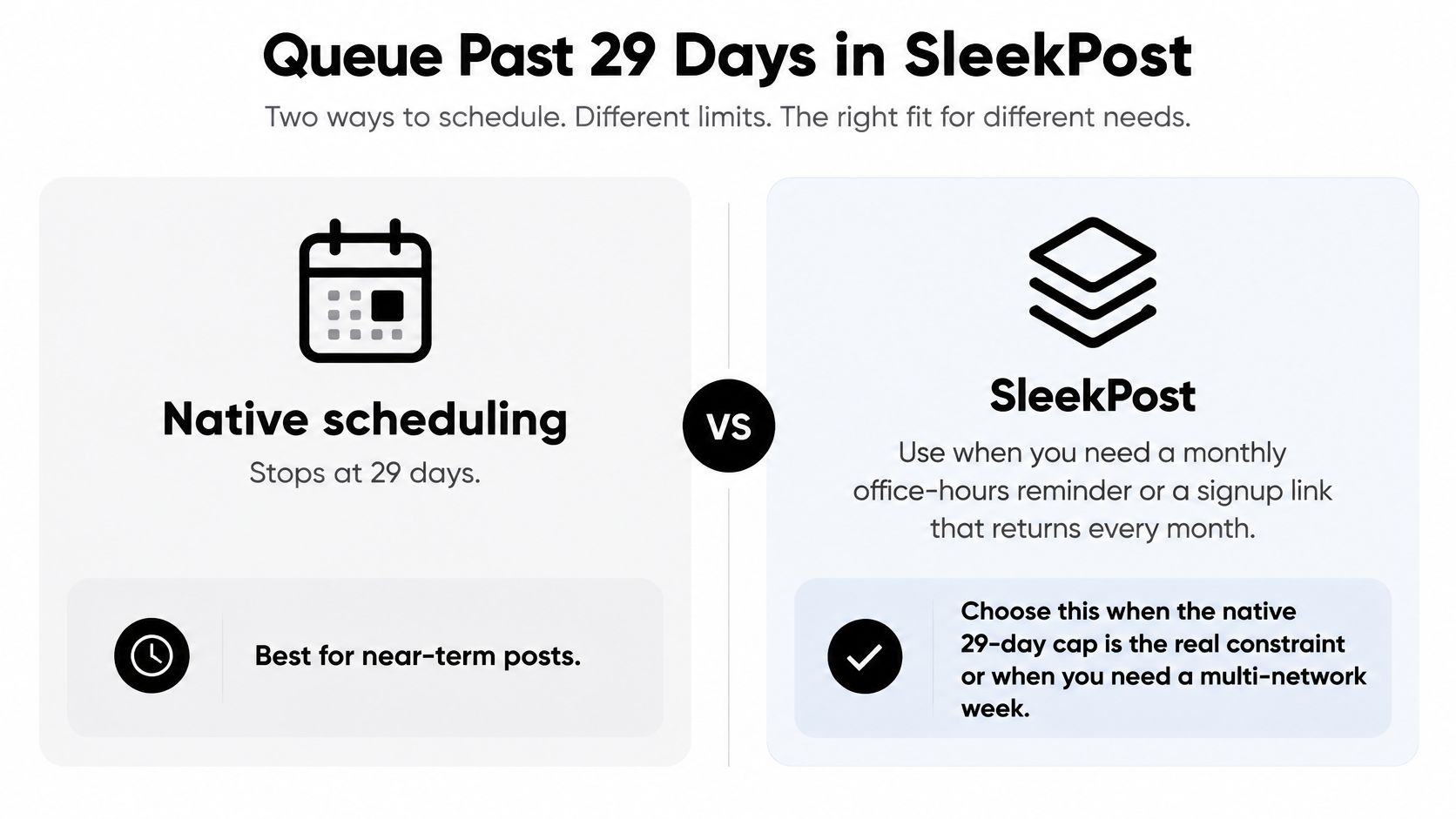
Use a longer queue for repeatable work
SleekPost is an option for scheduling Facebook alongside other networks, customizing copy and media per destination, and managing recurring posts or auto-reposts from a shared dashboard. Its media library lets you keep approved assets available while preparing the corresponding posts.
Say a studio publishes an office-hours reminder and regularly promotes an evergreen signup page. Store the approved image and copy, choose the appropriate Facebook window, and configure the recurrence deliberately. Don't apply recurrence to a promotion just because the initial post performed well.
A repeatable publishing setup still needs maintenance:
- Check evergreen claims. Confirm that opening hours, availability, service descriptions, and destination pages remain accurate.
- Set destination-specific versions. A Facebook link post needs a usable invitation to click, while an Instagram version may need different wording and framing.
- Inspect recurring items before sensitive periods. Pause routine promotions when closures, emergencies, or campaign changes make them inappropriate.
- Assign an owner. Someone should be responsible for retiring old reminders, not just adding new ones.
Batch the preparation, not the judgement
A multi-network queue saves repeated setup, but identical content everywhere isn't the objective. Review the Facebook crop separately from a Reel's framing, and make sure each caption tells the reader what they can do on that destination.
Before releasing the batch, confirm that the Facebook destination is a Page the connected account can publish to. Match the queue's time zone to the intended local schedule, and keep a clear record of which tool owns each publication so you don't also schedule duplicates natively.
A content calendar software workflow helps separate ideas, approved drafts, and items ready for publication. That distinction matters when you can prepare content well before it should enter an active queue.
Stay in Meta Business Suite when you're managing a straightforward, near-term calendar for a Page. Choose a longer-term scheduler when recurrence or network-specific preparation creates repeated manual work. Keep Meta available for checking Page access, inspecting failures, and confirming that the final post reached the intended destination.
SleekPost offers queued publishing, recurring posts, and destination-specific copy and media for Facebook and other networks. Visit SleekPost to organize your next batch, then verify the Page, time zone, and saved queue before leaving it to publish.