Yes, you can schedule videos on Instagram, with native scheduling allowing up to 25 posts per day and 75 days ahead, but your route and format options depend on whether you use Instagram's controls or a professional-account third-party scheduler. Stories aren't handled like ordinary scheduled feed posts or Reels.
But are you scheduling a video file, or choosing how Instagram will publish it? That's the distinction to settle before you upload anything. Choose the format and publishing route first, then prepare the asset for that route.
Table of Contents
- Scheduling Videos on Instagram
- Choosing a Scheduling Method
- Using Instagram's Native Scheduler
- Scheduling Videos With SleekPost
- Preparing Videos for Reliable Publishing
- Avoiding Common Scheduling Problems
- A Practical Scheduling Checklist
Scheduling Videos on Instagram
Yes, Instagram videos can be scheduled. If you're preparing several videos for the coming week, start by deciding where each belongs rather than sending every export into the same queue.
A video intended for your feed, a Reel, and a Story aren't interchangeable publishing instructions. The creative may overlap, but the scheduling workflow doesn't necessarily follow.
Choose the destination before the scheduler
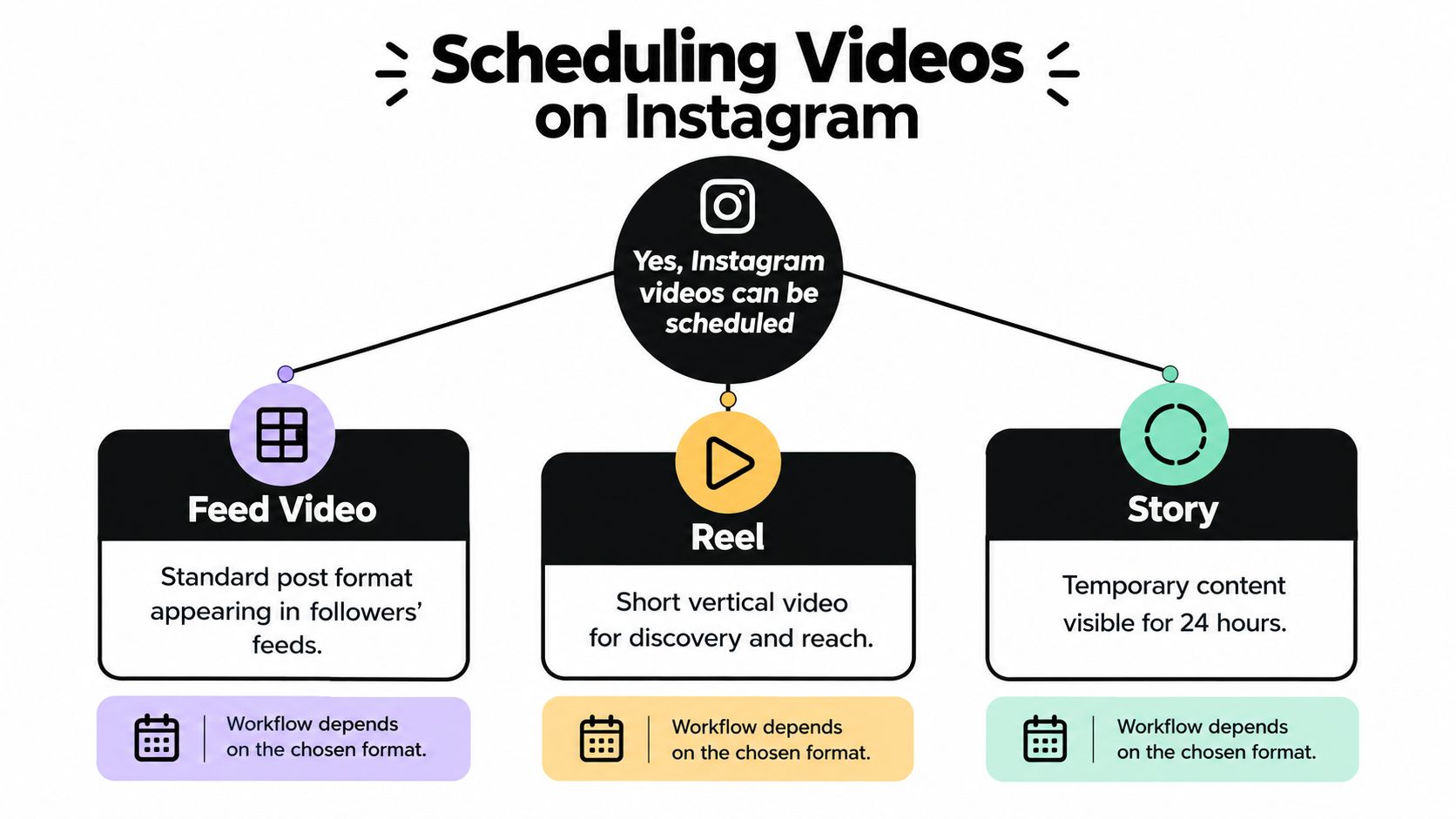
- Feed video: Start with the intended feed presentation, then check how your chosen publishing route classifies the upload. Don't assume a video labeled “feed content” in your planning document will publish as a separate video-post format.
- Reel: Prepare the caption, cover, and vertical composition together. Treat these as part of the finished asset, not details to resolve after scheduling.
- Story: Plan a separate workflow. Instagram's native post-and-Reel scheduling controls don't cover Stories in the same way.
Use this format map to make the publishing decision before building your queue.
Separate production from publication
Your next decision is whether to work inside Instagram or through an authorized external tool. Native controls handle the scheduling within Instagram; external automatic publishing introduces account permissions and format requirements.
For a broader look at connecting production to a Reel workflow, ClipCreator.ai's resource on AI automation for Reels publishing is a useful companion.
Practical rule: Put the intended Instagram format beside every video in your content calendar. “Video ready” isn't a complete publishing instruction.
Choosing a Scheduling Method
Use native scheduling for straightforward Instagram work. Choose a separate dashboard when coordinating channels becomes the bigger job. Neither choice removes the need to check what your account and publishing route support.
The key technical distinction is that API-based automatic publishing requires a Business or Creator account, and uploaded videos are treated as Reels rather than a separate video-post format, as explained in Buffer's Instagram publishing documentation.
Instagram video scheduling routes
| Method | Account requirement | Video behavior | Best fit |
|---|---|---|---|
| Instagram native scheduler | Confirm scheduling is available in your account | Supports the native post and Reel workflow | Instagram-focused publishing |
| API-based publishing | Authorized Business or Creator profile | An individual video publishes as a Reel | Custom integrations and automated workflows |
| Third-party dashboard | Professional authorization for automatic Instagram publishing | Subject to the connected route's supported formats and restrictions | Batching content across accounts and networks |
An API is the underlying publishing connection, not necessarily a finished scheduling interface. A third-party scheduler typically provides the workspace around that connection, so compare the interface and operational controls without confusing them with Instagram's permissions.
Pick for the work you actually manage
Ask what's making publishing difficult. If it's remembering to publish a finished Instagram video, native scheduling is a sensible starting point. If it's adapting media and captions across networks, evaluate a centralized tool.
For that broader planning problem, revid.ai's schedule social media posts guide provides additional context. Use the Instagram scheduling app guide to frame your tool evaluation around the workflow you need.
If Stories are essential, make support for that specific workflow a selection criterion. Don't accept “Instagram supported” as proof that every Instagram format can publish automatically.
Using Instagram's Native Scheduler
Start with a finished video and the correct Instagram account open. Native scheduling is most useful when the creative decisions are already settled, rather than being rushed through on the scheduling screen.
Keep the account and selected publishing format visible as you work through the mobile workflow.
Build and confirm the scheduled post
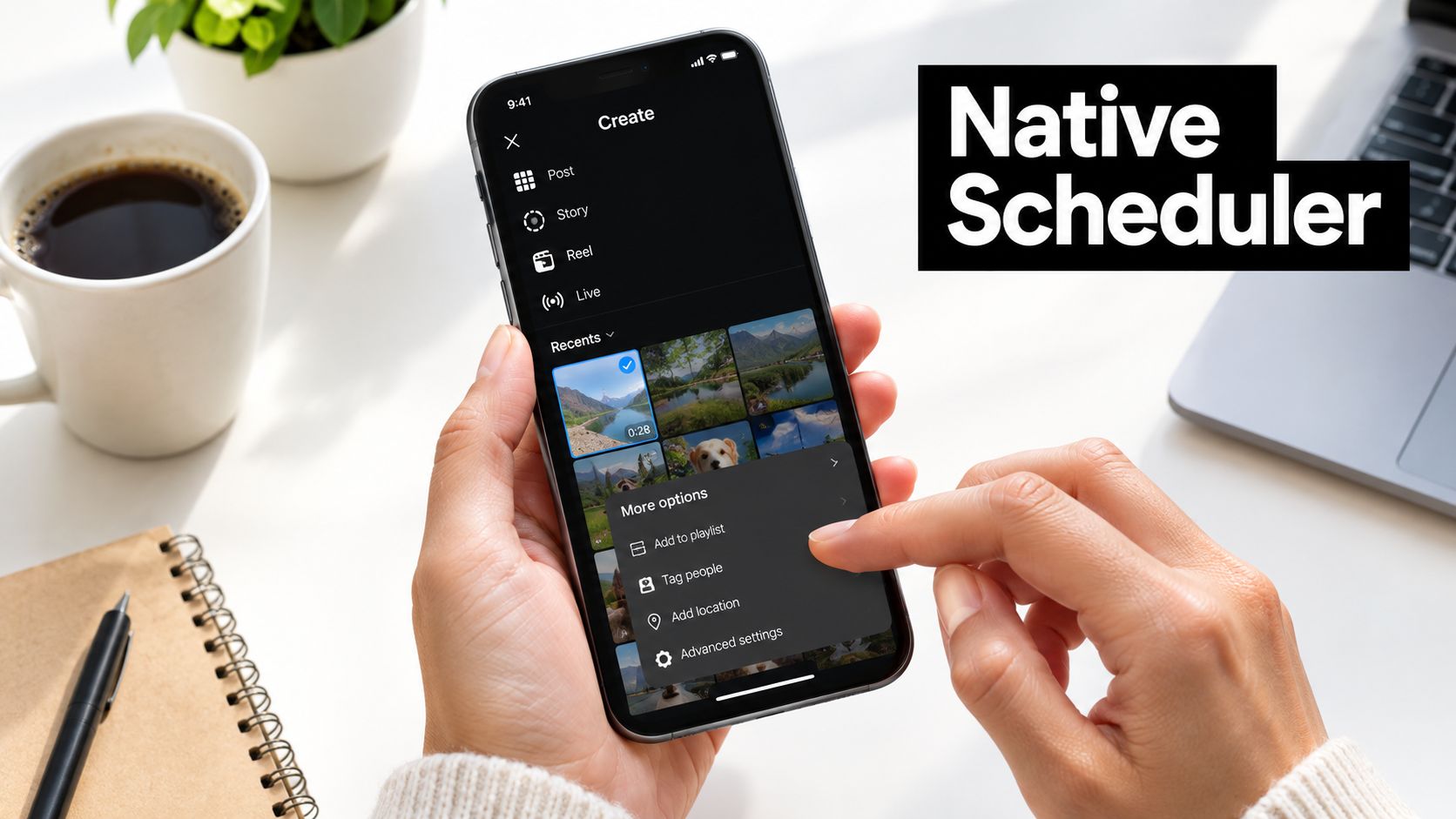
Open Create, choose Post or Reel, and select your video. Pay attention to the creation path you selected and the format shown in the interface, rather than relying on the filename or your original content-calendar label.
Finish the caption and edits, then open More options or Advanced settings. Enable Schedule this post/reel, select the date and time, and confirm with Done and Schedule.
Before leaving, review the scheduled item. Check the video preview separately from the caption so that a clean visual doesn't distract you from a missing detail in the copy.
Use this walkthrough as a visual companion to the process.
Plan within the native queue
The documented allowance is 25 scheduled posts per day, shared across feed posts, carousels, and Reels, with scheduling up to 75 days ahead, according to SocialRails' native scheduling guidance. It isn't a separate allowance for each format.
Native scheduling also covers supported single-image posts and carousels. For a Story-led campaign, use a separate Story scheduling workflow rather than trying to force it through these controls.
- Verify the clock: Check the account's local time zone and intended publication time.
- Review the queue: Confirm that the scheduled item contains the final asset, not an earlier export.
- Keep a review window: Leave time to reconsider the post before it goes live.
A small business can batch its upcoming feed content and Reels during a production session. The useful habit is retaining a final review, not treating the batch as untouchable once it's queued.
Scheduling Videos With SleekPost
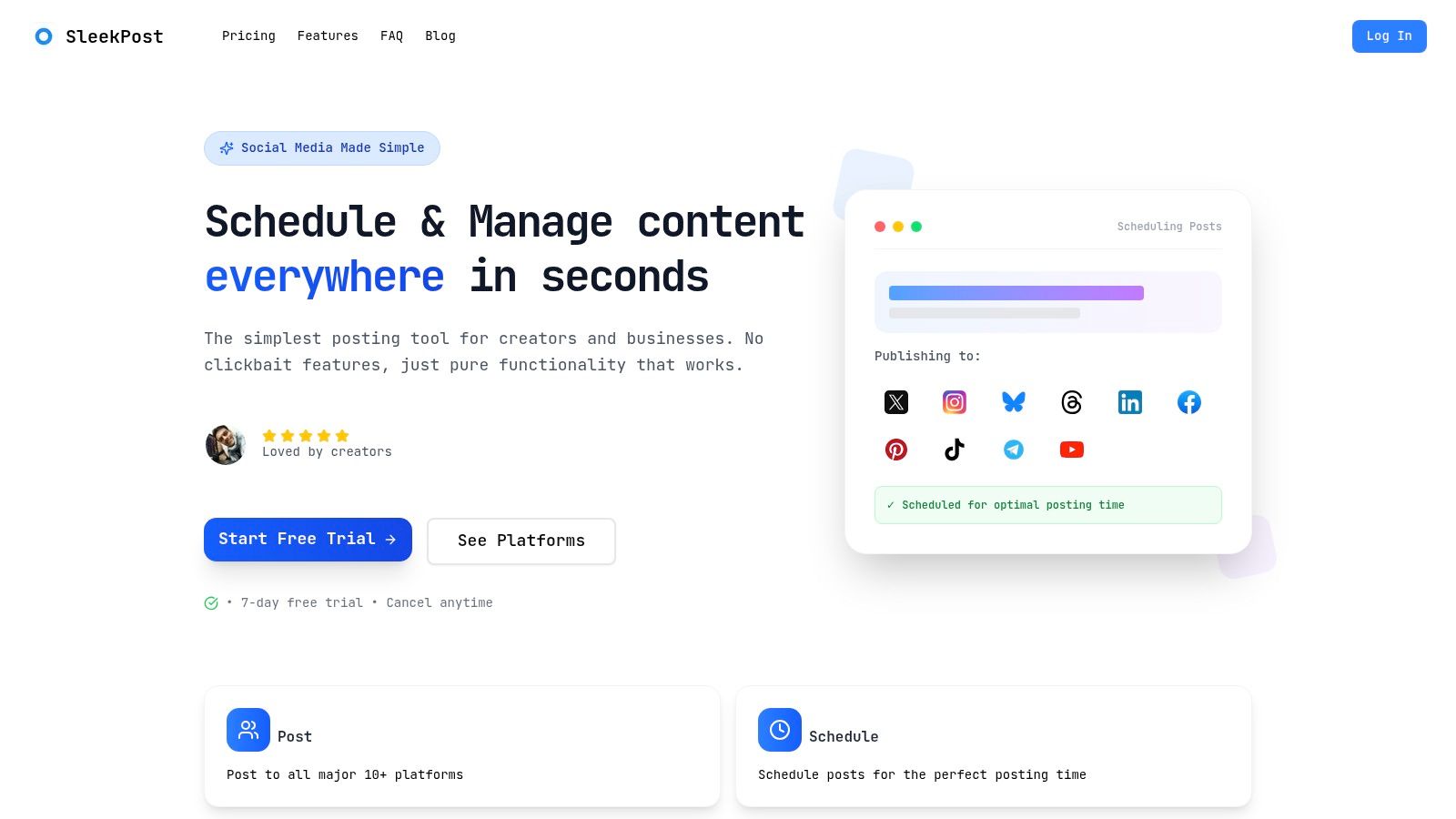
A separate dashboard makes sense when your publishing session includes Instagram alongside other networks. SleekPost offers scheduling and publishing across multiple platforms, with platform-specific copy and media, queues, recurring posts, auto-reposts, a media library, and large file uploads.
Use the dashboard as a place to coordinate finished content, not as a substitute for checking Instagram's requirements.
Prepare the Instagram version deliberately
Begin with the exported video, intended cover, and approved caption ready. Connect the appropriate professional account, complete its authorization, and select Instagram as the destination.
Confirm the supported publishing format before assigning a date. For an automatically published individual video, use the Reel-oriented approach described earlier instead of assuming a generic video upload preserves your original feed-post plan.
Adapt the copy for Instagram, then set the publication date and time or place the post in the appropriate queue. Review the queued item before considering the task finished.
Make batching useful rather than repetitive
A creator can prepare related videos together while giving each its own caption and cover. A startup can coordinate content for different profiles without treating every audience as identical.
An agency should apply the same discipline to account selection. Centralizing work is useful only if the final review still confirms the destination and brand-specific details.
- Customize the message: Use platform-specific copy rather than carrying every caption unchanged across networks.
- Reuse assets carefully: A shared media library helps organize exports, but choose the correct version for each destination.
- Review recurring content: Check that an evergreen video is still relevant before allowing another publication.
A scheduler can organize distribution. You still need to decide whether the content belongs on that account, in that format, at that time.
When evaluating a trial, test your actual workflow: authorization, upload, queue review, and publication. Don't judge the tool solely by how quickly you can create a draft.
Preparing Videos for Reliable Publishing
A valid video file isn't automatically a valid automated-publishing asset. Export for the publishing route you've chosen, rather than relying on the scheduler to repair incompatibilities during upload.
For the automated route described earlier, check the documented 3-second to 15-minute duration, 300 MB file ceiling, and 4:5 to 9:16 aspect-ratio range. Those route-specific restrictions should guide your export.
Use a controlled export
Circleboom's Instagram video specifications describe MP4 or MOV, H.264 or HEVC, progressive scan, closed GOP, 4:2:0 chroma subsampling, 23–60 fps, variable bitrate up to 25 Mbps, AAC audio up to 48 kHz and 128 kbps, and a maximum horizontal dimension of 1,920 pixels. That specification recommends vertical 9:16, commonly 1,080×1,920, and separately lists a 1 GB maximum.
Don't treat that larger ceiling as permission to exceed the stricter automated-route limit. These are different documented specifications, not interchangeable upload guarantees. Follow the requirements of the destination you'll use.
Use this preflight guide before sending the final export to your queue.
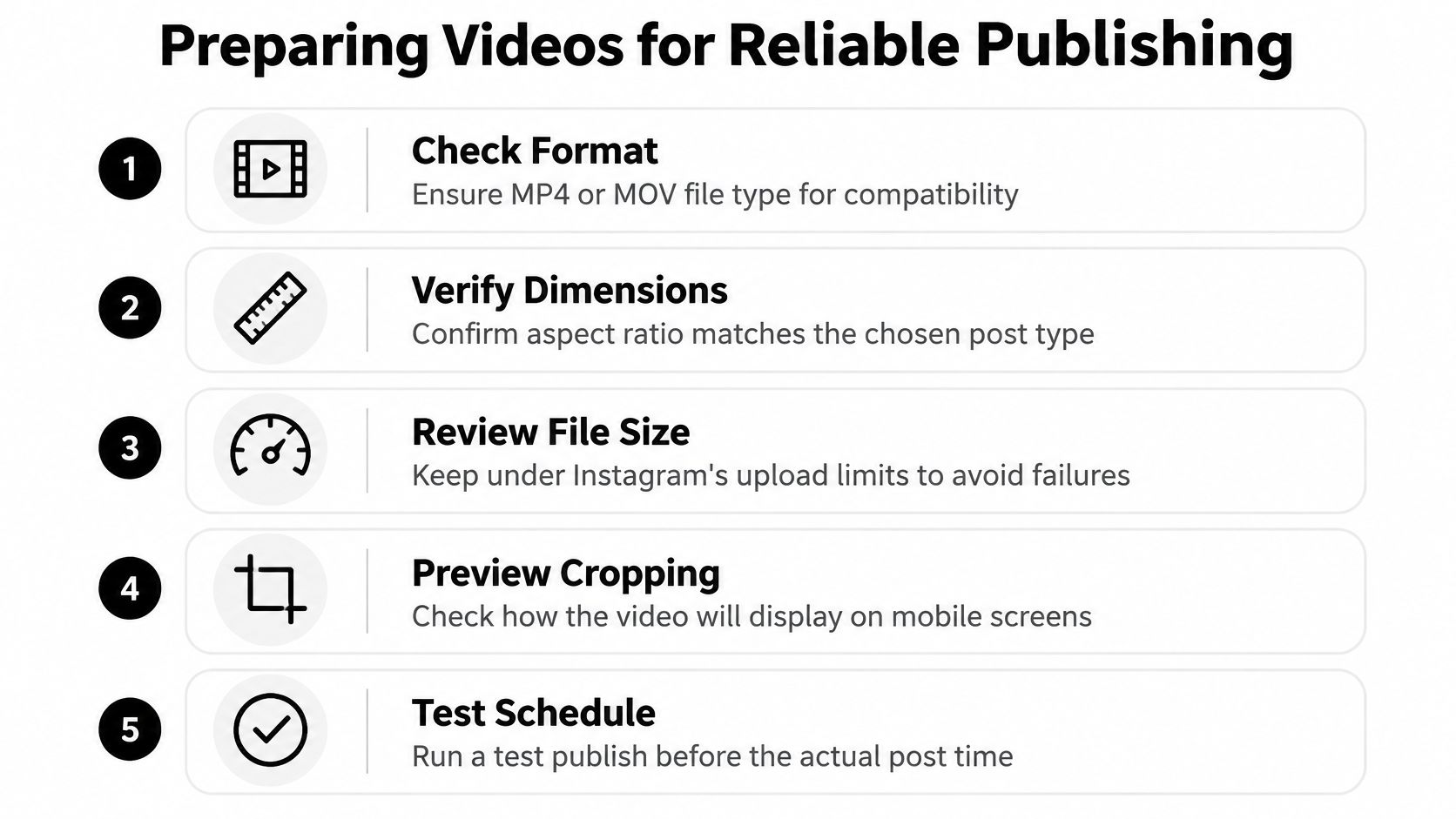
Check the export before uploading
- Inspect the container and codec: Check the encoded file, not merely its extension.
- Confirm duration and size: Compare the finished export with the selected route's restrictions.
- Check frame rate: Transcode variable-frame-rate footage to constant frame rate when preparing the publishing file.
- Prepare the file structure: Place the moov atom at the front when your export tools support it.
- Protect the composition: Keep captions and essential visual details inside the safe central area.
For additional production context, consult RenderIO's Reels format guide. The high-quality Instagram video upload guide can also help you evaluate the finished asset rather than just the editing preview.
Keep the source project available until you've verified the published result. Re-exporting deliberately is preferable to repeatedly submitting the same unsuitable file.
Avoiding Common Scheduling Problems
Scheduling doesn't guarantee publication, and publication doesn't guarantee performance. Diagnose those as separate problems.
If a video fails, start with the publishing route and exported file. Oversized media, unsupported edit lists, incompatible audio tracks, and inconsistent frame-rate handling belong in the technical investigation. If the post publishes but looks wrong, inspect cropping and interface overlays before blaming scheduling.
Separate technical review from editorial review
Technical review asks whether Instagram can accept and display the asset correctly. Editorial review asks whether the caption, cover, opening, and timing make the post worth publishing.
- Test the asset: Upload a test where practical and inspect the published result on mobile, including sound.
- Check the composition: Look for captions or product details obscured beneath interface controls.
- Confirm the approved version: Compare the queued post with the final creative and copy.
- Recheck the calendar: Review queue capacity, time zone, and any changed campaign context.
Use the reliable posting guide as a companion when building this review routine. Keep the checks specific enough that another person could repeat them.
Don't confuse a small comparison with a guarantee
One small comparison reported 8.19% engagement for scheduled posts versus 6.44% for manual posts, with reach of 10,122 versus 7,189, but included only five posts per method, as described in the scheduling workflow and performance comparison. That sample doesn't establish a universal advantage or prove that scheduling caused the difference.
Treat scheduling as an operational choice, not a reach strategy.
After publication, check that the video is live and respond to comments. Then evaluate reach, watch time, completion rate, saves, shares, and profile actions rather than using likes alone.
If the file published correctly but viewers didn't respond, investigate the creative and audience fit. Changing schedulers isn't a substitute for improving the video.
A Practical Scheduling Checklist
The useful answer to “can you schedule videos on Instagram?” is a decision path, not just a yes. Match the intended format to an available publishing route, then validate the finished post before launch.
Before you commit the post
- Name the format: Decide whether the content belongs in a feed-post, Reel, or Story workflow.
- Confirm access: Check the account, authorization, and supported publishing options.
- Choose the workspace: Use native controls for straightforward Instagram publishing or a centralized dashboard for cross-platform coordination.
- Finish the creative: Prepare the caption, cover, framing, and final export together.
- Validate the asset: Check duration, size, aspect ratio, codec, audio, and safe areas against the chosen route.
- Confirm the launch: Verify the date, time zone, queued preview, and person responsible for checking publication.
Use the account's Follower active times as your starting hypothesis for timing. The guide to choosing when to post Reels can help frame that decision, but your own results should determine what you retain.
Apply it to your next batch
A creator preparing a Reel should settle the cover and vertical composition before opening the scheduler. The final review should confirm that the queued version matches the approved export.
A small business scheduling several videos should check each destination and caption individually, even when the assets were produced together. Assign someone to verify publication and handle comments rather than leaving the queue unattended.
Yes, Instagram videos can be scheduled. Reliable publishing depends on matching the route to the format and checking the asset before launch.
SleekPost provides a central dashboard for scheduling content, adapting copy and media by platform, and organizing publishing queues. Visit SleekPost to try your Instagram video workflow with a finished asset, review the queued post, and check the published result before batching the rest.